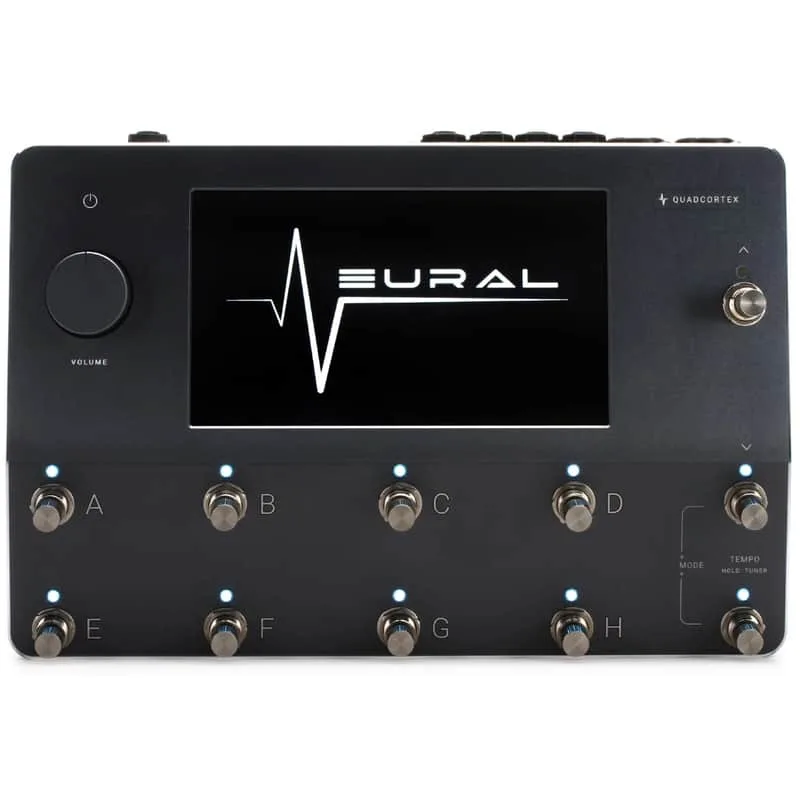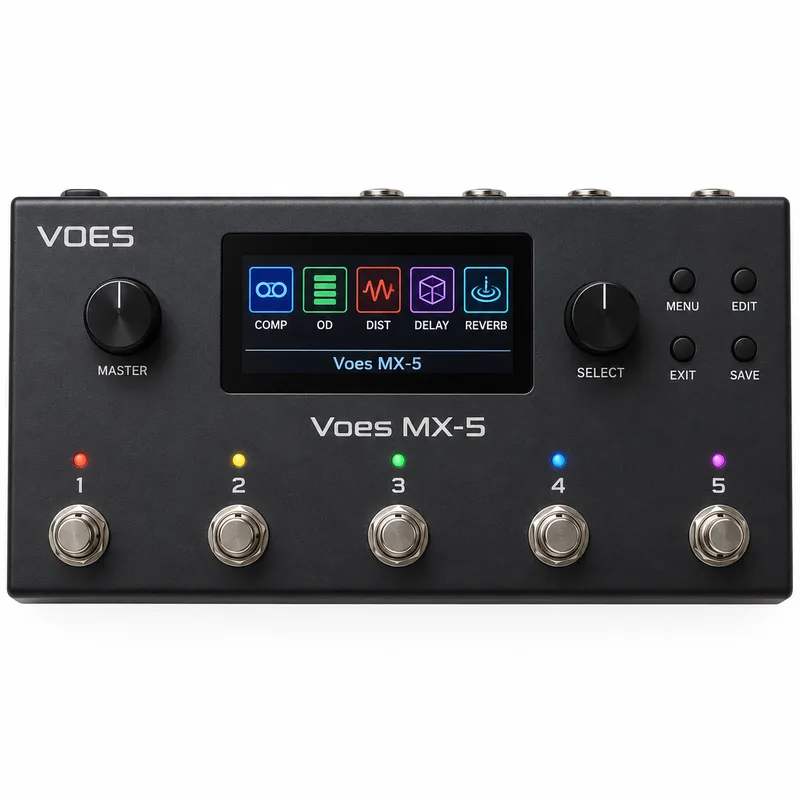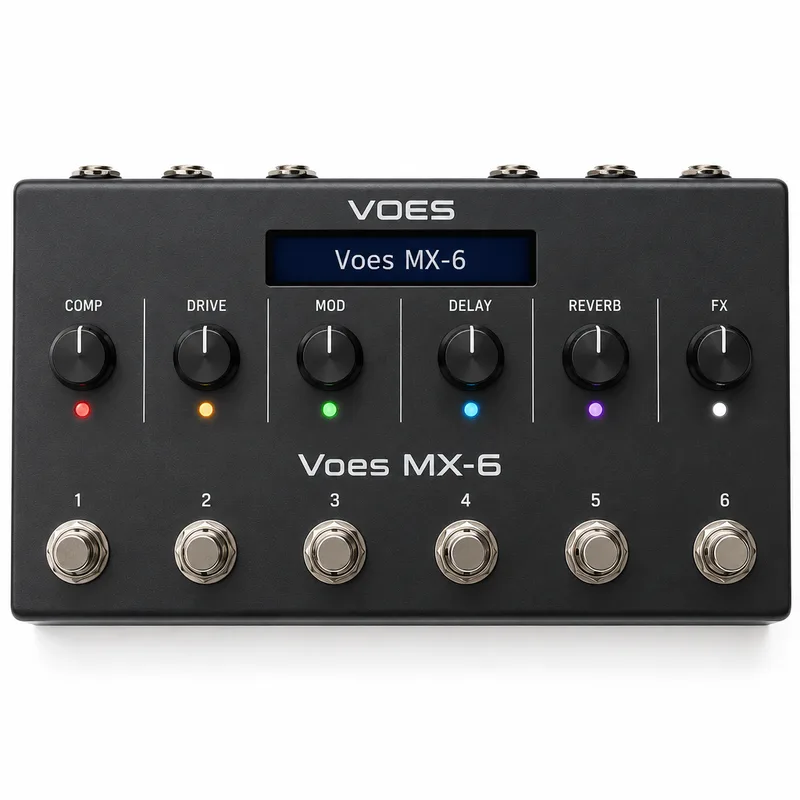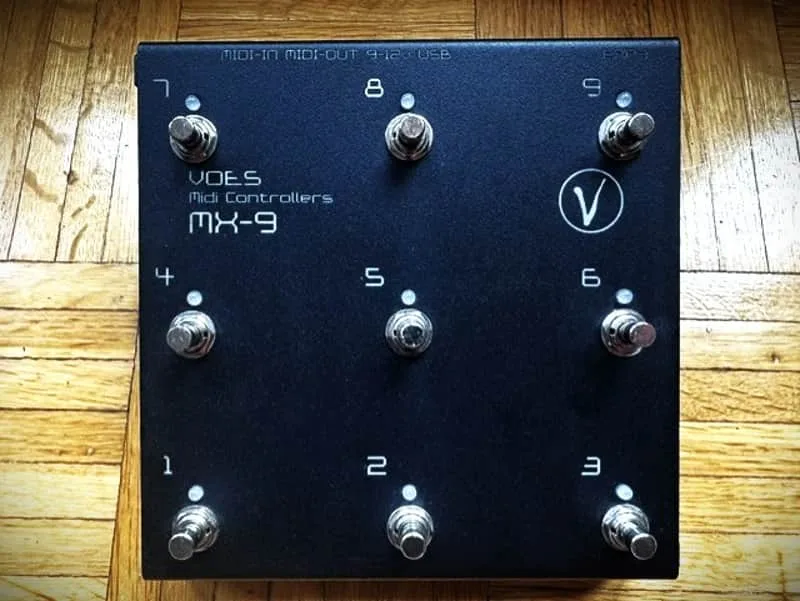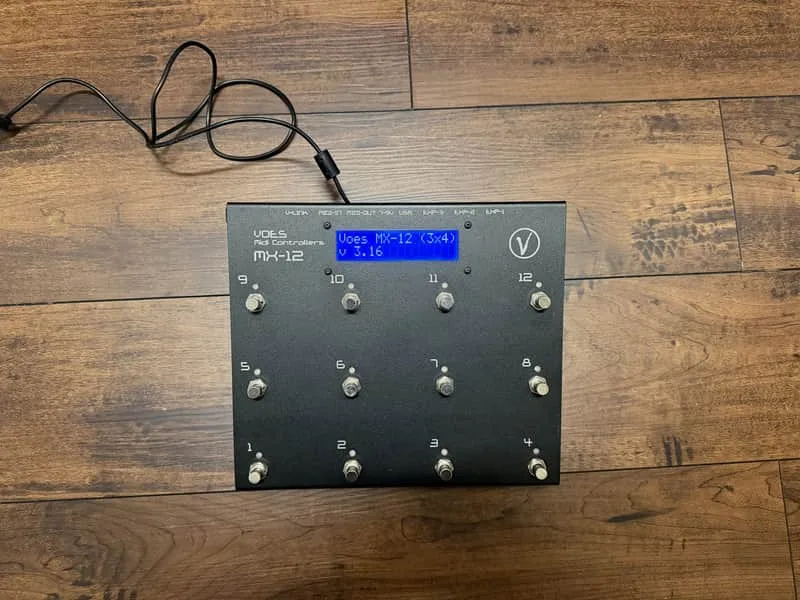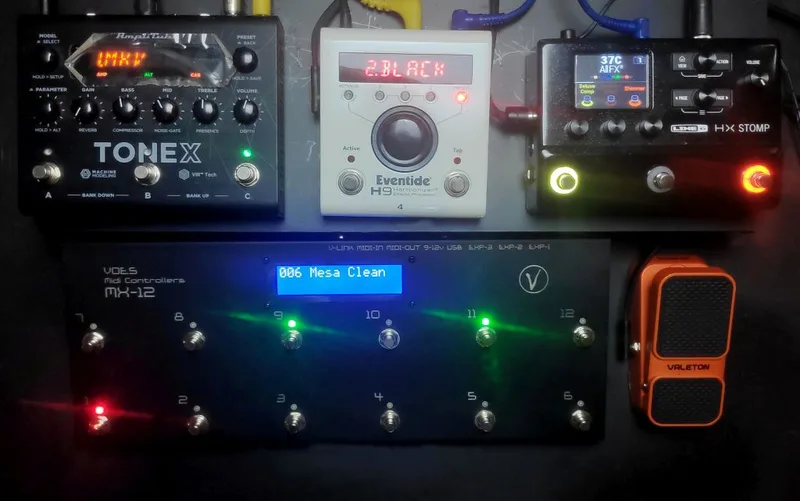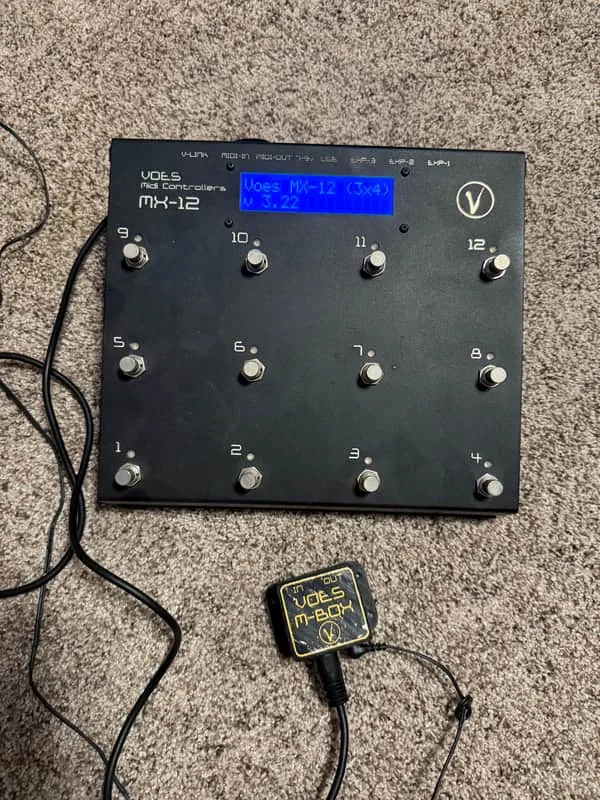


The Voes MX is a family of MIDI foot controllers built by Voes, a Belgian maker. Instead of making sound itself, an MX sends MIDI messages to whatever you connect it to: modelers like the Line 6 HX Stomp, Neural DSP Quad Cortex, IK Tonex, Kemper Profiler and Fractal Axe-Fx units, or MIDI-equipped tube amps. Every button can be programmed from a set of 68 command types, so one footswitch can change a preset, jump to a scene, tap a tempo or run a looper1.
The range covers different sizes, from the compact MX-5 and MX-6 through the MX-9 and the MX-12 3x4 and MX-12 (2x6) layouts up to the MX-18, plus the MX-EX expander. Voes positions the MX as a way to extend compact devices that have only one or two buttons of their own, adding presets through MIDI PC commands2. With a Line 6 unit, for example, Voes says the MX will extend it with 5 to 18 extra buttons3.
Pages, layers and long press
The MX organizes its buttons into three setups: Page A and Page B, both fully editable, and Page P, a presets page with a fixed layout1. A Type 41 command switches between Page A and Page B, and a Type 42 command switches between the current page and Page P1. Page P is not available on the MX-5, MX-6 and MX-91.
Each button has two layers: Normal Press and Long Press1. That means one physical switch can carry two different sets of commands, and how the long press behaves is itself configurable. Voes lists four Long Press types1:
| Long Press type | Behavior |
|---|---|
| Block | Long Press does not work; buttons respond faster because commands are processed on button press, not release1 |
| Once | Activates the button's 2nd layer once, then returns to the 1st layer page on the next press1 |
| Trigger-Only | Activates the 2nd layer but stays on the 1st layer1 |
| Hold | Activates the 2nd layer and stays there1 |
Block mode is worth a note for players who care about response speed: because commands fire on press rather than release, Voes says buttons respond faster in that mode1.
By default, all commands assigned to a button are transmitted at once. A Step By Step mode changes that: only one command is transmitted on each step, the next button press sends the next command, and at the end the cycle returns to the first command. If Auto Color Steps is enabled, the LED changes color on each step so you can see where you are in the sequence1.
The 68 command types
Each command can choose from 68 Types, and each layer holds up to 6 commands1. The set covers plain MIDI messages, device-specific sync commands and controller housekeeping.
General MIDI commands
- Type 1, None: does nothing; skipped if steps is active1
- Type 2, Preset (PC): transmits a program change on a MIDI channel, 1 to 161
- Type 3, PC Independent: sends the same program change but the button operates independently of the main exclusive group, so a regular Preset button press will not turn off its LED1
- Types 4/5, CC On/Off and CC Off/On: ON sends a control change, 1 to 127, with value 127; OFF sends the same CC with value 01
- Type 6, CC On Only: always sends value 127 on each press; Voes calls it ideal for tap tempo, and the LED blinks briefly1
- Type 7, CC On Only LED: the same, but toggles the LED on each press1
- Type 8, CC Off Only: the opposite of CC On Only1
- Type 9, CC Value: for any value other than 0 or 1271
- Types 10/11, CC Plus and CC Min: increases or decreases the CC value on each push1
- Type 12, CC Momentary: turns the button into a momentary switch, sending value 127 on press and 0 on release; commands 2 to 6 will not execute and Long Press does not work with it1
- Types 13/14, Note On/Off and Note Trigger: play notes or trigger samples1
- Types 43/44, SysEx and SysEx Toggle: send SysEx messages up to 16 characters long1
Expression and pedal commands
Types 15 to 17 (Expr 1/2/3 CC Swap) change what an expression input does, for example switching from Wah to Volume1. Types 18 and 19 (Auto 1/2 On CC Swap) replace the CC and channel of the regular Expr 1/2 Auto On settings1.
Preset and bank navigation
- Types 24/25, Bank Down and Bank Up: select the first preset number and decrease or increase it by the count of all presets on the layout1
- Type 26, Bank Number: selects a particular bank1
- Types 27/28, Preset Down and Preset Up: decrease or increase the current preset number1
- Type 29, Favorite Preset: jumps to a favorite preset and returns to the previous one1
- Type 37, Preset Select: all LEDs blink blue and every button selects its respective preset number, then buttons return to their programmed state1
- Type 38, Bank Select: all LEDs blink red and every button selects its respective bank number1
- Type 39, Numeric Preset Select: buttons 1 to 9 and 10 as zero choose a preset number1
Scenes, tuner, tempo and looper
- Type 30, Scene: selects Scene 1 to 8, transmitting the right CC number depending on the selection in External Device; works with Fractal Audio Systems, Quad Cortex, Tonex and HX Stomp snapshots1
- Types 31/32, Scene Down and Up: decrease or increase the current scene or snapshot1
- Type 33, Scene A/B: switches between two scenes or snapshots1
- Type 34, Tuner: activates the tuner; tuner info is not shown on the MX LCD display; works with Fractal, Quad Cortex, Tonex and HX Stomp1
- Type 35, Tempo: sends a tempo command1
- Type 36, Looper: looper commands Record, Play/Stop, Undo, Reverse and Erase; works with Quad Cortex and HX Stomp1
LED and display commands
- Type 20, IA On/Off: turns another IA (instant access) button on or off1
- Type 21, All Other LEDs Off: solves conflicts between the visual LED layout and the actual on/off state of the connected instrument1
- Type 22, On Color: sets the button LED to one of 7 colors: Red, Green, Blue, Yellow, Purple, Turquoise or White1
- Type 23, Off Color: changes the default off color, which is None, to any of the same 7 colors1
- Type 40, Save: saves the on/off LED states of all buttons for the current preset1
- Type 45, Text: displays text on the second line of the LCD1
Page and multi-controller commands
- Type 41, Page A/B: switches between Page A and Page B1
- Type 42, Page P: switches between the current page and the fixed-layout presets page1
- Type 46, Child IA On/Off: turns another IA on or off on a second connected (child) MX1
- Type 47, Child Page A/B: switches pages on a second connected (child) MX1
The Child commands are how two MX units work together: one controller can drive the buttons and pages of another on the same rig1.
Device-specific sync commands
Beyond the general types, the MX has dedicated command families that talk to specific modelers and pull information back to the controller's LCD and tempo LED1.
- 12 dedicated Axe-Fx I/II/III and FM3/9 Types1
- 9 dedicated Kemper Profiler Types1
- Special Tempo, Tuner and Looper commands for Line 6 HX Stomp, Neural DSP Quad Cortex and IK Tonex1
Types 48 to 50 sync with the Axe-Fx Standard, Ultra and II (XL+): the MX shows preset name and tuner info on the LCD, and the tempo LED blinks1. Types 51 to 59 sync with the Axe-Fx III, FM3 or FM9 and show more: preset name, scene name, active scene, block FX on/off state, block FX channel state, tuner info and looper commands, with the tempo LED blinking1. Types 60 to 68 sync with the Kemper Profiler, showing performance name, rig name, stomp and FX on/off state and tuner info on the LCD, with the tempo LED blinking and Kemper looper commands available1.
This is where the tuner answer gets interesting for players comparing controllers: the generic Type 34 tuner command does not display tuner info on the MX, but the Kemper and Axe-Fx III/FM3/FM9 sync commands do1.
Connecting amps and other gear
The MX is not limited to modelers. Voes lists modern tube amps that can all be controlled by MIDI, including the Revv D20 and G20, Hook Wizard, Marshall 6100, Hughes & Kettner Black Spirit 200, EVH 5150 III and Engl Savage 1202. Channel switching on those amps becomes a matter of assigning the right CC commands to buttons.
For compact MIDI devices with one or two buttons of their own, Voes says the MX can extend them with additional presets using MIDI PC commands2. Each button can also add or subtract a fixed CC value on each step, using CC Value, CC Min and CC Plus settings2.
Power and setup
All MX devices run on a 9 to 12V supply through a 2.1mm power adapter, which Voes notes is common on any pedalboard2. Power is forgiving: AC or DC does not matter, and the positive/negative side does not matter either. As Voes puts it, "The MX will take care or that."2
Because the MX accepts AC or DC and either polarity on its 2.1mm jack, it can share a power supply with pedals that have stricter center-negative requirements, but always match the 9 to 12V range2.
Setup is done through the MX Editor, available for Windows and Mac. Voes says that with the editor, "the MX is easy to setup," and invites players to download it and try it out themselves12.
Videos
Voes Midi Controllers
Voes Midi Controllers
Voes Midi Controllers
Questions
Can I link two Voes MX controllers together?
Yes. The MX has Child commands (Types 46 and 47) that turn another IA On or Off, or switch between Page A and Page B, on a second connected MX. Voes describes the second unit as a child MX, so one controller can drive the pages and individual buttons of another.
Is there a Voes MX editor for Mac?
Yes. Voes offers a Windows and Mac editor for the MX, and says the MX is easy to set up with it. The editor can be downloaded from the Voes site, so you can try setting up a controller before committing to a configuration.
Can the Voes MX switch channels on a Marshall or EVH amp?
Yes, if the amp accepts MIDI. Voes lists the Marshall 6100 and the EVH 5150 III among modern tube amps that can all be controlled by MIDI, alongside the Revv D20 and G20, Hook Wizard, Hughes & Kettner Black Spirit 200 and Engl Savage 120.
Does the Voes MX show the tuner on its display?
It depends on the connected device. The generic Tuner command (Type 34) activates the tuner but does not show tuner info on the MX LCD. The dedicated sync commands for the Kemper Profiler and for the Axe-Fx III, FM3 and FM9 do show tuner info on the LCD.
Sources (3)
- Voes | Midi Controllers, Voes (voes.be), 2026
- Voes | Midi Controllers, Voes, 2026
- Voes | Midi Controllers, Voes, 2026